Using a Local Linux Machine
Execute the following commands to run Cuttlefish on your machine:
launch_cvd --gpu_mode=guest_swiftshader \
    --start_webrtc=true \
    -report_anonymous_usage_stats=n \
    --enable-sandbox=false \
    --cpus=8 \
    --display0=width=1920,height=1080,dpi=140


adb devices

# Browser
https://localhost:8443/
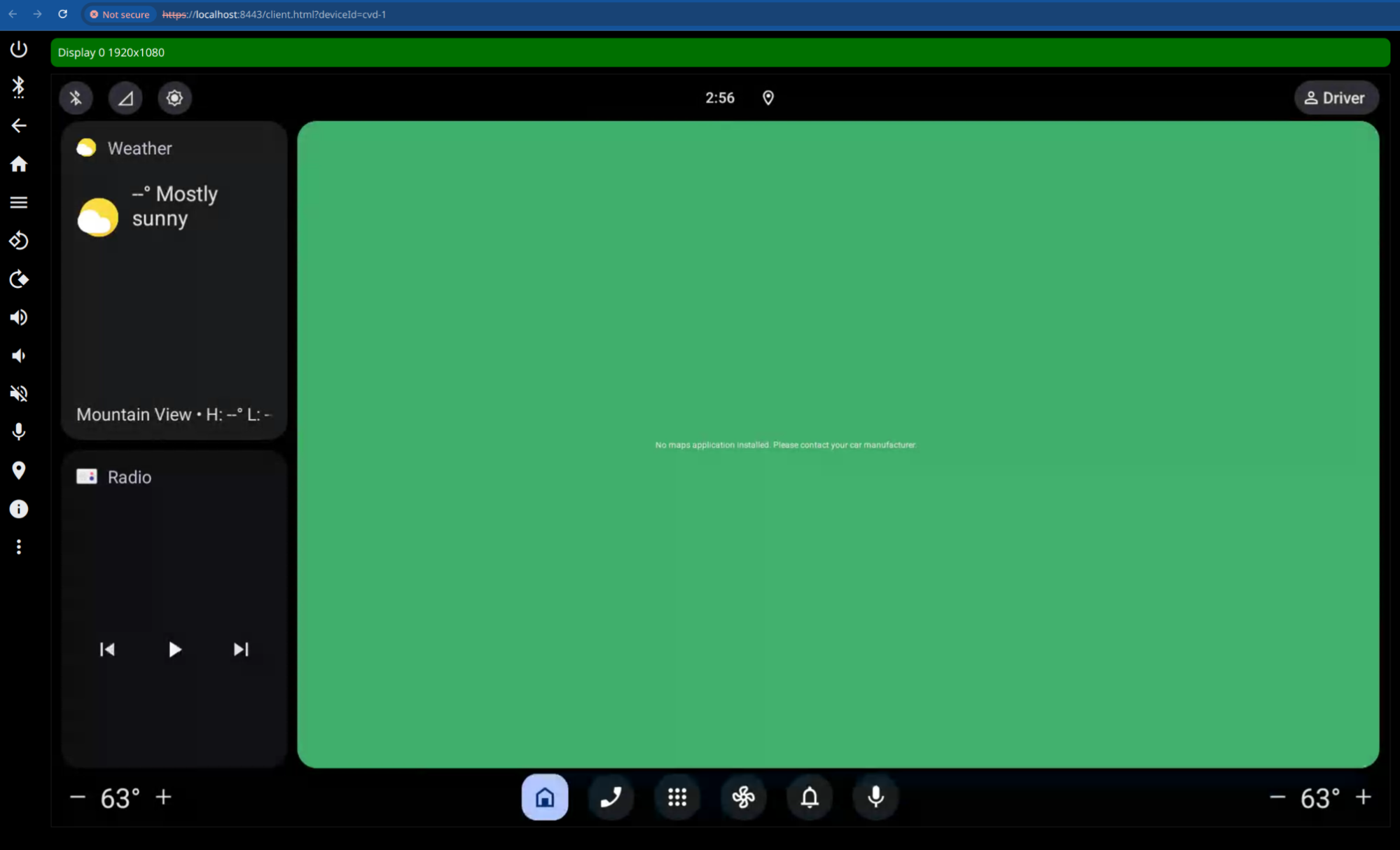
Cuttlefish in Docker
It is possible to run Cuttlefish virtual devices inside of a docker container (e.g., the one provided for the training) under certain preconditions. For instance, your host machine needs to be running a Linux distribution with KVM installed and usable.
Info
The following command intentionally removes some of the container isolation between software running inside the container and the host’s kernel. As different (versions of) Linux distributions have different security features enabled or your machine might be subject to security hardening measures, your mileage may vary.
The adb commands and the --publish=127.0.0.1:5037:5037 parameter for Docker in the code block below are optional. These allow you to use adb from outside of the container to interact with Cuttlefish inside the container.
docker run --rm -ti -v ./android:/src/aosp  --user=ubuntu -w /src/aosp \
    --device /dev/kvm                                                             \
    --device /dev/vhost-vsock                                                     \
    --publish=127.0.0.1:8443:8443                                                 \
    --publish=127.0.0.1:5037:5037                                                 \
    --privileged                                                                  \
    --ulimit nofile=262144:262144                                                 \
    aosp
adb kill-server              # make sure no server is running
adb -a -P 5037 start-server  # restart listening on all interfaces

launch_cvd --gpu_mode=guest_swiftshader \
    --start_webrtc=true \
    -report_anonymous_usage_stats=n \
    --enable-sandbox=false \
    --cpus=8 \
    --display0=width=1920,height=1080,dpi=140
Tip
In case adb devices shows no devices connected even though the adb commands were run and the Cuttlefish virtual device is running, using adb connect localhost:6520 may help.
Tip
When using podman instead of docker, remember to add the --userns=keep-id option so that the /src/aosp files are readable by the user inside of the container.