B04b: Exercise: Build Your First App
In this exercise you are going to build and deploy our first app.
Download and Build
Download the git repository of the training to your local computer:
git clone https://github.com/inovexAcademy/aosp-aaos-training
The Android application is in the sub-directory app.
Now start Android Studio and open the project in app. Downloading the necessary dependencies and indexing the project may take some time.
After that you should see the following screen:
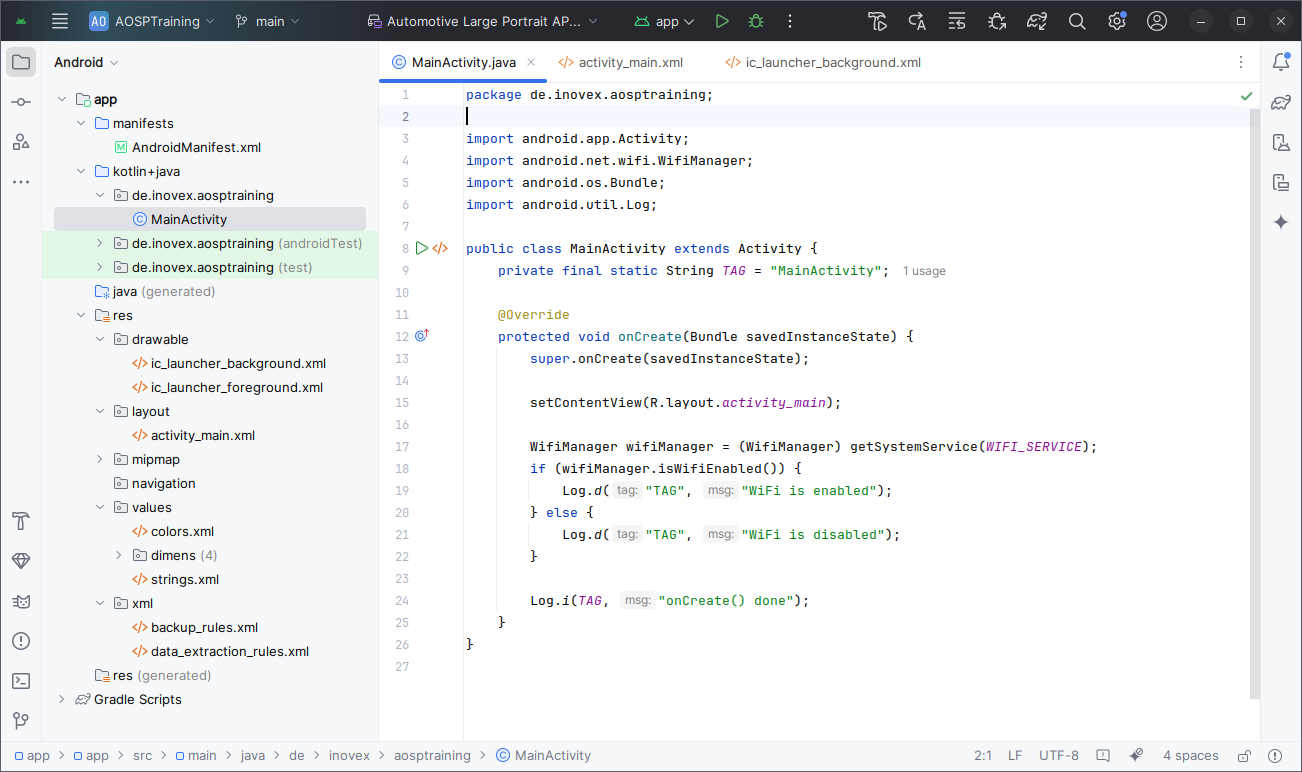
Let the instructor show you the core elements of the UI:
- Editor Window
- Toolbar to build and run the Application
- Sidebar to navigate the source files
- Bottom window with logcat
Now just build the application to get the apk file. Once the build has finished you will find the file in the build directory
find -name "*.apk"
There are multiple files, but the final apk will be ./app/app/build/outputs/apk/debug/app-debug.apk.
Install and Run
In case your Android device is attached locally, e.g., a phone in Developer Mode, you can deploy directly from the Android Studio UI.
When using the cuttlefish device in the virtual machine, as in this training, that is not possible. Therefore, we will install the application by hand.
First, copy the apk to virtual machine
scp ./app/app/build/outputs/apk/debug/app-debug.apk ubuntu@185.113.125.XXX:
Now switch back to a shell on the virtual machine. First check that the (cuttlefish) device is running:
adb devices
Then install the application in the apk file with
adb install app-debug.apk
This loads the apk file in the current directory and installs it on the device. You can check whether the application has been installed successfully with
adb shell pm list packages | grep aosptraining
adb shell pm dump de.inovex.aosptraining | less
The first command just prints a list of installed packages. The second command instructs the PackageManager to print out all the information of an application.
Then switch to the UI of the device and search for the new Launcher Activity/Icon on the Home screen. Click on it to start the application. The application should start.
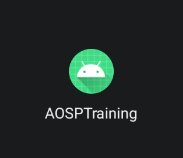
To see the logcat output of the Activity, you can do
adb shell logcat -s 'MainActivity:*'
To see the logcat output of the entire application, you can use external tools like alogview:
alogview de.inovex.aosptraining
Additional Command-Line Tools
You can also control applications on the command line. For example, to stop an application, remove all Activity, Services and kill the Unix process, you can use
adb shell am force-stop de.inovex.aosptraining
After executing this command, the Activity on cuttlefish should disappear.
To start an Activity on the command line, you can execute
adb shell am start -n de.inovex.aosptraining/.MainActivity
am is the command-line interface to the ActivityManager. The first part (de.inovex.aosptraining) is the package name. The second part (.MainActivity) the name of the Activity.
After executing the command, you should see the Activity reappearing on the UI.
Bonus Task
Add a new log statement, e.g.,
Log.i(TAG, "hello world!");
in the onCreate() function, rebuild, redeploy and see it logcat's output.