Using perfetto
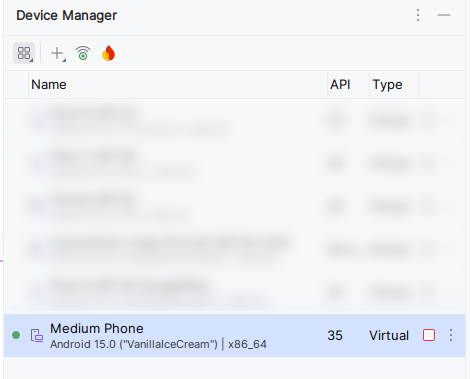
Create a virtual device in Android Studio. In this training you should use a Medium Phone with a x86_64 image and API level 35. See the image
Clone the example repository:
git clone https://github.com/inovexAcademy/aosp-aaos-training
Open the Android Application in the subfolder app-graphics in Android Studio.
Start the virtual device and build and deploy the SimpleUIUpdateActivity to the device.
Open https://ui.perfetto.dev/.
- For Linux use ADB + Websocket proxy.
- For Windows see the instructions at the end of the page.
Select the following trace sources
- CPU -> Scheduling Details
- Android apps & svcs -> Atrace userspace annotations (select all and Record events from all Android apps and Services)
- Android apps & svcs -> Frame timeline
- Advanced Settings -> Advanced ftrace config
- Advanced Settings -> Process<>thread association
Then trace for a few seconds.
Inspect the results for the example application.
See
- the different lanes for the different threads
- the thread states (running, runnable, sleeping)
- the existing atrace tags
- the search bar on top
- a binder flow event
- the pin feature
Now enable the two predefined atrace tags in the SimpleUIUpdateActivity of the example application. Rebuild and rerun the application and trace again. You should see the new atrace tags in the trace.
Special Instructions for Windows
ADB + Websocket does not support Windows and the emulator is not connected via USB to your computer (like a normal phone). So the option WebUSB also does not work. Instead you must start perfetto manually with the following instructions:
Select the perfetto tracing options as described above.
Go to Cmdline instructions in the Perfetto UI.
Copy the configuration named config.pbtx.
Go into the platform-tools directory that contains the adb program.
Create a file called perfetto.txt there. Paste the configuration content into it and save the file.
Now start a shell window. It can be the traditional cmd or a Windows PowerShell.
Change directory into the platform-tools directory.
Execute the command was shown into Perfetto UI, but adapt it to Windows. Example:
type perfetto.txt | .\adb shell perfetto -c - --txt \
    -o /data/misc/perfetto-traces/trace.pftrace
After tracing has finished, copy the trace results to your computer using adb pull. Example:
.\adb pull /data/misc/perfetto-traces/trace.pftrace
Now open the file trace.pftrace in the Perfetto UI.